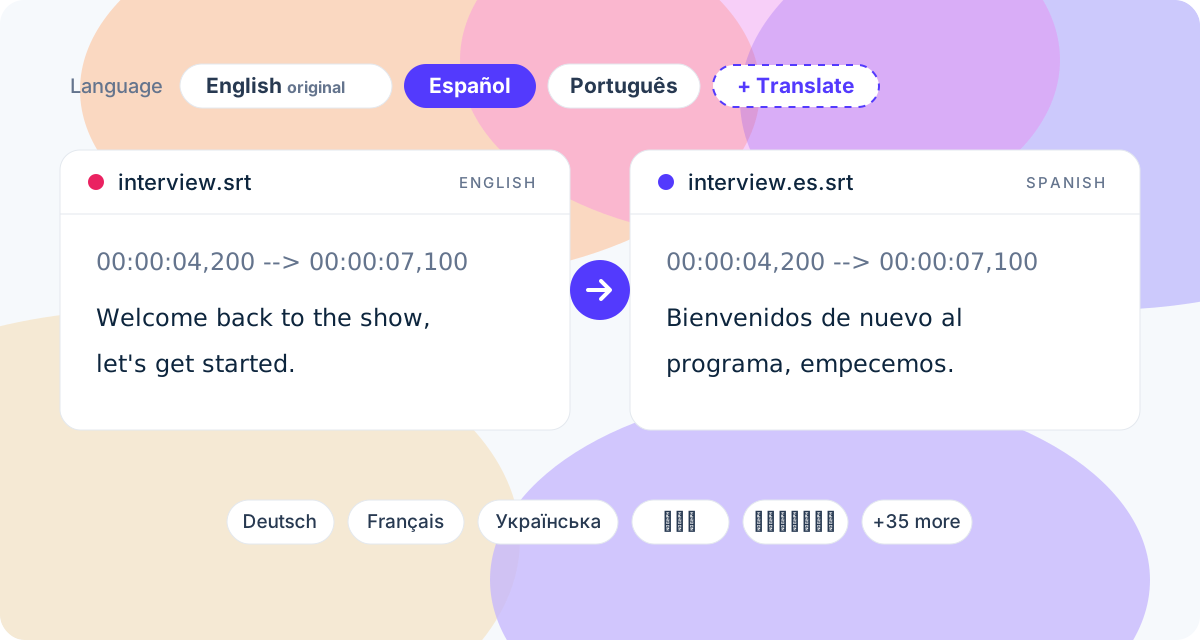
Most of the people who could watch your video don't speak its language. Subtitles are the cheapest bridge across: the video stays exactly as you made it, and only the text changes. The usual way to get them translated, though, is a detour — export an SRT, paste it through a translation tool cue by cue or pay per file, then check that the timing survived.
ToneLark does the whole trip in one place. Upload the video once and the speech is transcribed with a timestamp on every word. After that, every language is one click: pick it from the list, and about a minute later you can read the translated subtitles, download them as SRT or VTT, watch the video with them, or burn them into the picture.
How to translate subtitles
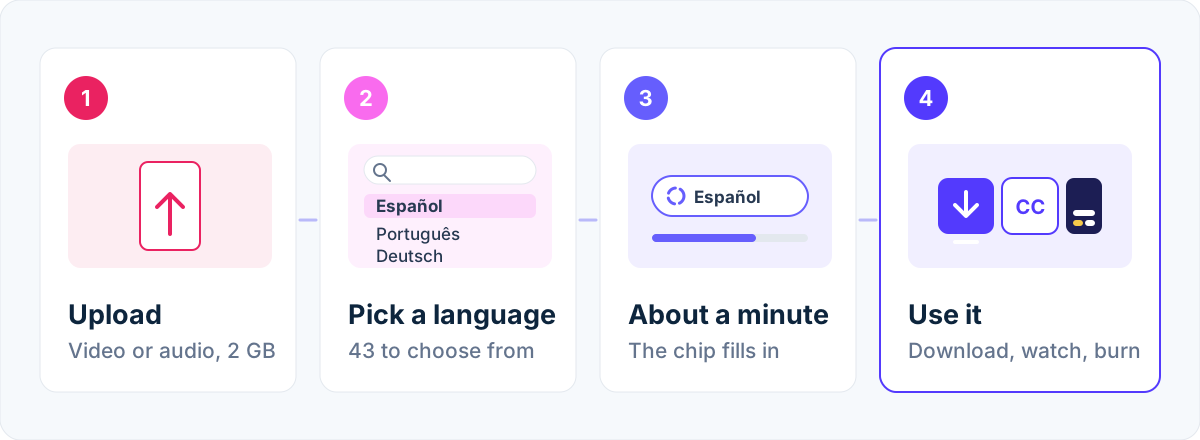
- Upload the video or audio (up to 2 GB; create a free account first). The spoken language is detected automatically, and you get an email when the subtitles are ready.
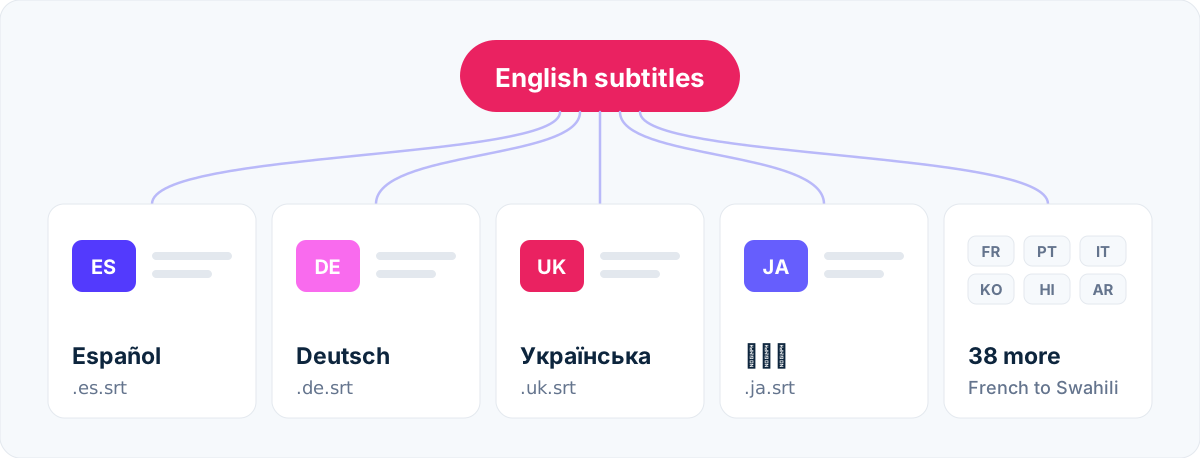
- Open the video and click Translate. The language bar at the top of the video page lists the original and every translation. The picker searches all 43 languages, with your browser's languages suggested first — and if the video isn't in your language, a one-click suggestion offers it outright.
- Wait about a minute. The new language appears as a chip and fills in while you keep working; a long video takes a few minutes.
- Use it. With the chip selected, the whole page follows: the Subtitles tab shows and downloads the translated SRT and VTT, the player offers the language in its CC menu, and the Overview tab previews — and burns in — captions in that language.
The timing stays, only the text changes
A translated subtitle file is still the same subtitle file. Every cue keeps its exact start and end, taken from the speech itself, so nothing drifts and the file stays in sync in any player or editor. The text is translated in context — sentences, not isolated lines — so names, pronouns and phrasing follow the conversation. And when a translation comes out longer than the original, as German reliably does, the line is split in two at a natural point, following the usual subtitle line-length guideline.
Watch it, download it, burn it in
- Watch. The player on the video page lists every ready translation in its CC menu, so you can check the result line by line against the speech, or just watch the video in the language you prefer.
- Download. The Subtitles tab shows the translated file and downloads it as SRT or VTT (the differences). Upload the files to YouTube as extra subtitle tracks and viewers get captions in their own language — how to add an SRT to YouTube shows where.
- Burn it in. The same style editor and live preview as the original language: size, colours, position, background, and the highlighted word sweeping through each line in time with the cue. Right-to-left scripts like Arabic and Hebrew are drawn correctly. Chinese, Japanese and Korean are subtitle files only for now — they can't be burned in yet.
A burned-in translation is how you make one recording work on TikTok, Reels and Shorts in several markets: burn the Spanish copy, then the French one, and post each where it belongs. The original video is never modified.
Up to ten languages per video
Each video holds up to ten translations, and they stay with it: the chips in the language bar switch the page between them instantly, and switching is free. You only translate a language once — after that it is simply there, for watching, downloading and burning, until you delete the video.
Free translations and minute packs
Every account gets 3 free translations per calendar month, resetting on the 1st (UTC). Each minute pack adds its own — 20, 60 or 150 depending on the pack — spent after the free ones and valid as long as the pack. One language for one video counts as one translation; a translation that fails on our side is not counted, and the chip lets you try it again.
Translate checked text, not a guess
A translation can only be as good as the transcript under it: a misheard name stays misheard in all ten languages. Read the original subtitles through in the Subtitles tab before translating — names, product names and acronyms are the usual suspects. If too many words are wrong, the audio is usually the reason, and the tips for accurate automatic subtitles help with the next recording.