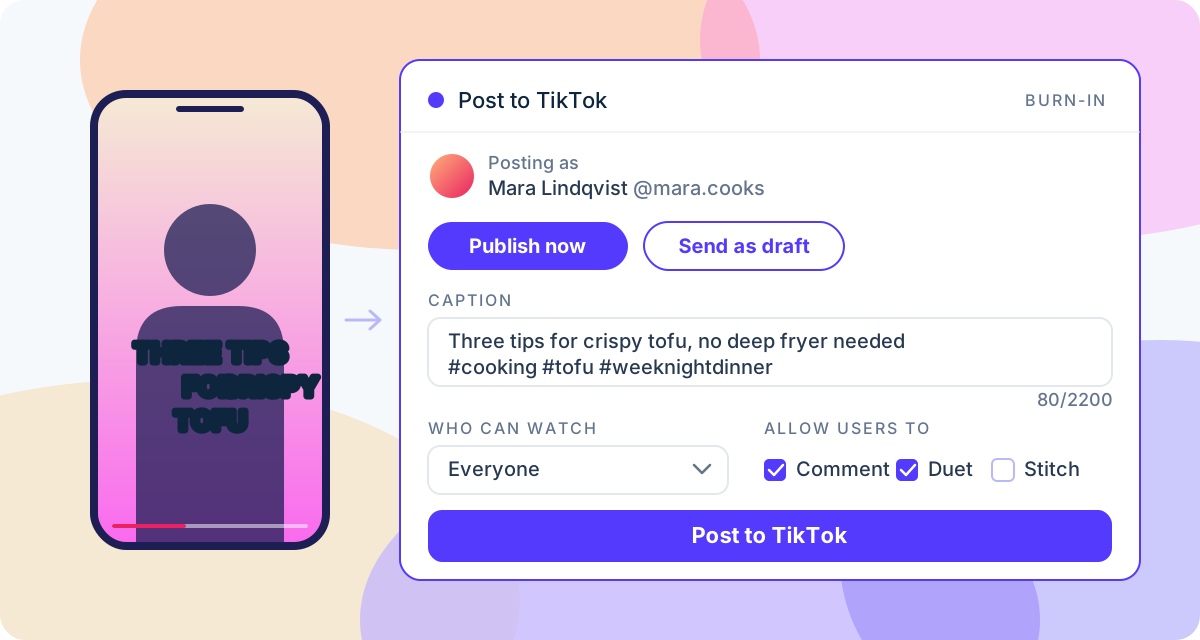
A captioned clip usually makes a round trip before it reaches TikTok: export it, caption it, send the file to your phone, open the app, upload it, type the caption. ToneLark cuts the trip. Upload the clip, burn the captions in, and post it to your TikTok account from the same page, no phone involved.
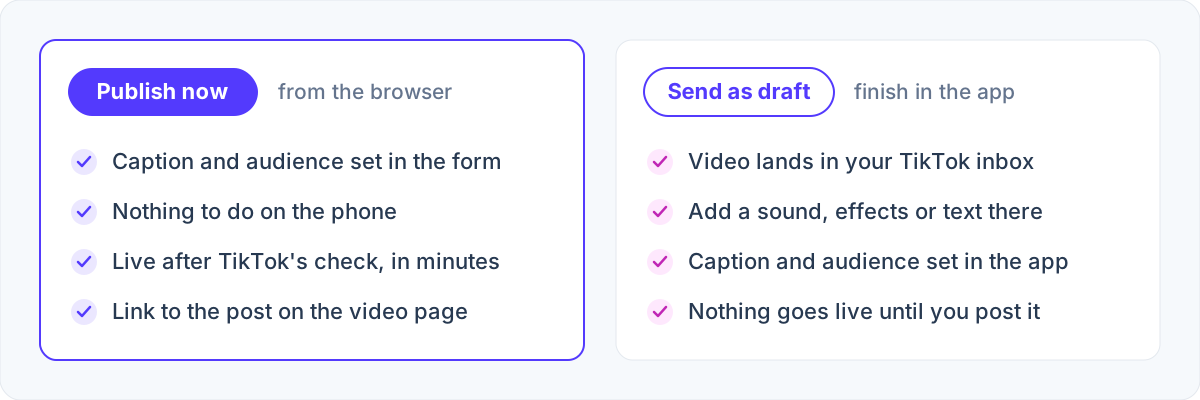
You choose how. Publish now sends the complete post, with the caption, the audience and the interaction settings filled in on the spot. Send as draft drops the video into your TikTok inbox, so you can add a sound, effects or the caption in the app and post it from there.
How to post a captioned video to TikTok
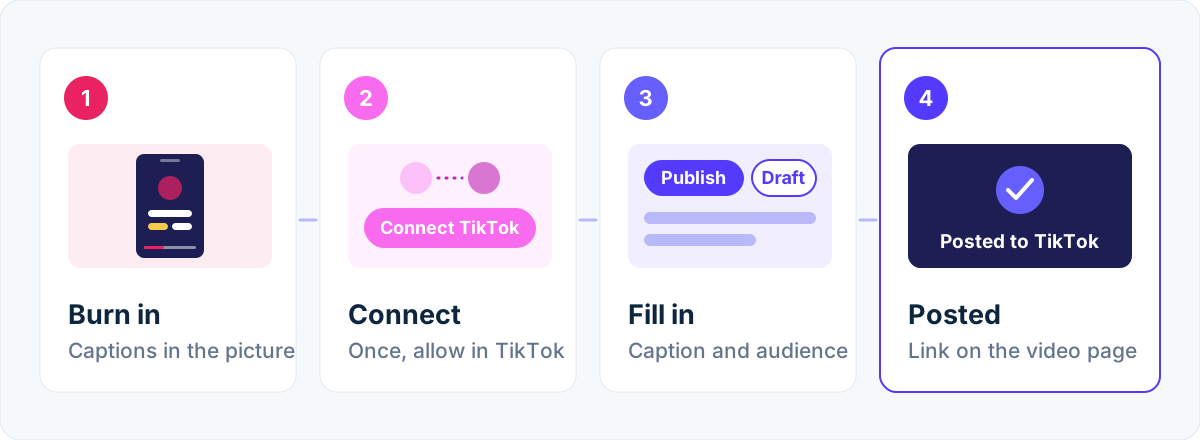
- Export the final cut, vertical (9:16) for TikTok, up to 10 minutes. The captions are timed to this exact file, so cut first, caption last.
- Upload it to ToneLark and wait for the email. The speech is transcribed word by word. Read the words through in the Subtitles tab, because burned-in text cannot be edited afterwards.
- Burn the captions in. Open the Burn-in tab, pick the size, colours and position in the live preview and click Burn in. The captioned MP4 is ready a few minutes later.
- Click Post to TikTok. The first time, ToneLark sends you to TikTok to allow it to publish to your account, then brings you back to the video. This happens once; later posts skip it.
- Choose Publish now or Send as draft. For Publish now, write the caption, pick who can watch and whether comments, duets and stitches are allowed, then click the button.
- Wait a few minutes. TikTok fetches the video and checks it. The video page then shows Posted to TikTok with a link to the post, or, for a draft, reminds you to finish it in the app.
Publish now or send as draft
Publish now is the whole post from the browser. You write the caption, choose the audience and the interactions, see the captioned copy play in the form, and click. TikTok fetches the video, checks it and publishes it; the public link shows up on the video page once TikTok has reviewed the post.
Send as draft hands the video to TikTok without publishing it. It lands in your TikTok inbox with a notification. Open it in the app, add a sound, effects, stickers or the caption, choose the audience and post it like any other upload. Nothing goes live until you do. Pick this when you want TikTok's own tools on the clip, or want to post at a particular time.
What you set before publishing
- Caption. Up to 2,200 characters, hashtags and @mentions included.
- Who can watch. Everyone, Friends, Followers or Only you. The list shows what your account allows, and nothing is preselected, so the audience is always a deliberate choice.
- Comments, Duet and Stitch. Off until you turn them on. An option switched off in your TikTok settings is greyed out, and a video only you can watch cannot be dueted or stitched.
- Disclose video content. If the video promotes a brand, a product or a service, turn this on and say whether it is your brand (the post is labelled Promotional content) or branded content for someone else (labelled Paid partnership). Branded content cannot be posted to "Only you".
- The preview. The captioned copy plays inside the form, so what you see is what goes out.
By posting you confirm TikTok's Music Usage Confirmation and, for branded content, its Branded Content Policy, exactly as you would in the app.
Captions that survive TikTok's interface
TikTok draws its own buttons down the right side and the username and caption over the bottom left of every video. Text placed there gets covered. For vertical clips, choose the middle caption position in the Burn-in tab, where the screen is clear and viewers are already looking. The details, with a picture of the safe zone, are in captions for TikTok, Reels and Shorts.
Your account stays yours
- Connect once. The connection lives under Connected accounts in the dashboard, where you can disconnect it at any time. Disconnecting removes the access you granted; videos already posted stay on TikTok. You can also withdraw the access in TikTok's own settings.
- What TikTok receives. The captioned video, which TikTok fetches from ToneLark through a temporary link, plus the caption and settings you chose. Never your email address, and never the original file.
- What ToneLark keeps. Your TikTok display name, handle and avatar, and the access TikTok grants, stored encrypted. For each post, when it was sent, whether it went through and TikTok's id of the post. See the privacy policy.
ToneLark is not affiliated with or endorsed by TikTok. TikTok decides whether and how a post is published, under its own guidelines.
Good to know
- Limits. Burn-in takes videos up to 10 minutes and outputs up to 1080p. Your TikTok account has its own maximum length, and the form tells you if the clip is over it.
- One post at a time. While a post is on its way, the button waits. The same video can be posted again later, for example after burning it with a different style, as a new post.
- Reconnecting. If TikTok stops accepting the access, for instance after you revoke it, the form asks you to connect again. Nothing else changes.
- Free minutes. Transcription uses 10 free minutes per calendar month, with prepaid packs for more. Burning the captions in and posting don't use minutes.