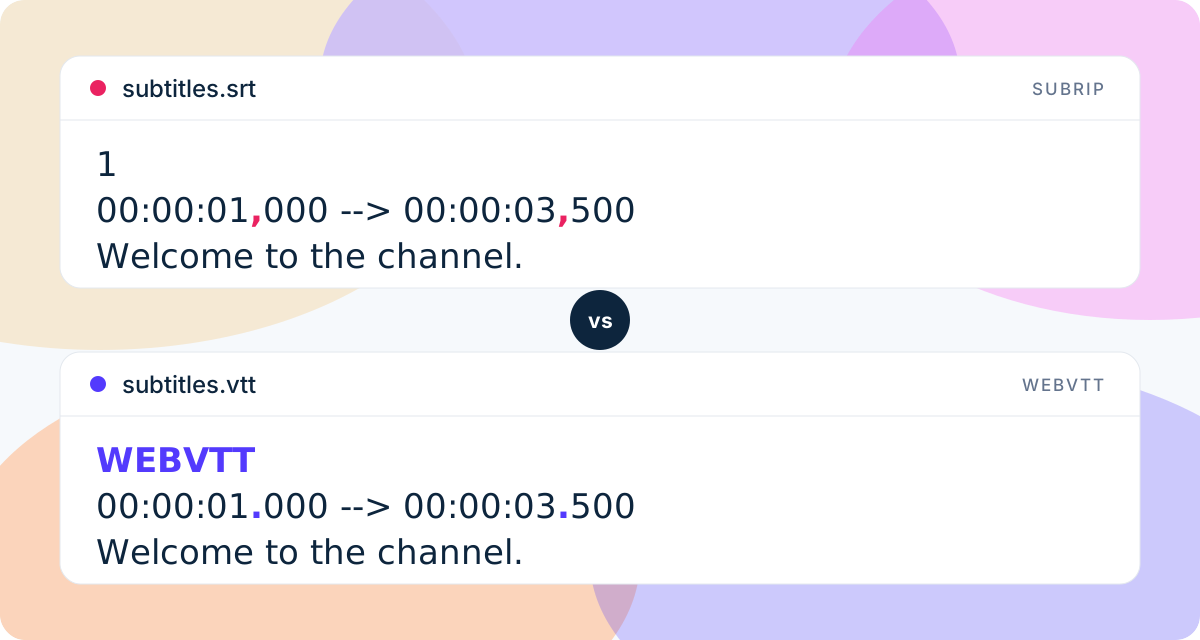
If you have ever downloaded subtitles and wondered whether to pick the .srt or the .vtt file, this guide is for you. Both hold the same thing: lines of text with a start and end time. The differences are small, but they decide whether your subtitles show up at all.
What an SRT file looks like
SubRip Text, or SRT, is the oldest subtitle format still in daily use. It is a plain text file with numbered blocks:
1
00:00:01,000 --> 00:00:03,500
Welcome to the channel.

2
00:00:03,600 --> 00:00:06,000
Today we look at subtitle formats.
Each block has a number, a time range with a comma before the milliseconds, the text, and a blank line. That is the whole format. There is no styling, no positioning and no metadata.
What a VTT file looks like
WebVTT, or VTT, was designed for HTML5 video. It looks almost the same, with three changes:
WEBVTT

00:00:01.000 --> 00:00:03.500
Welcome to the channel.

00:00:03.600 --> 00:00:06.000
Today we look at subtitle formats.
The file starts with the word WEBVTT, the milliseconds use a dot instead of a comma, and the block numbers are optional.
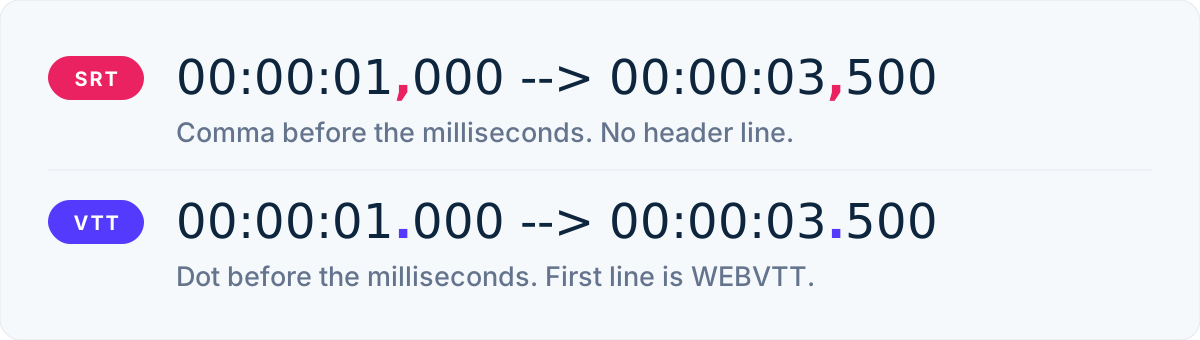 VTT also supports things SRT cannot do: cue positioning, basic styling through CSS classes, and chapter or metadata tracks.
When to use SRT
Pick SRT when the subtitles leave the browser. It is the format that works almost everywhere:
- Video editors such as Premiere Pro, DaVinci Resolve, Final Cut Pro and CapCut import SRT.
- Media players, smart TVs and set-top boxes read SRT next to the video file.
- YouTube, Vimeo, LinkedIn and most social platforms accept SRT uploads.
- Translators and reviewers can open it in any text editor.
If you are unsure which format a tool wants, SRT is the safe guess.
When to use VTT
Pick VTT when the subtitles are shown by a web page. The HTML5 <track> element only accepts WebVTT, so if you host your own video player, VTT is the only choice:
<video controls>
  <source src="talk.mp4" type="video/mp4" />
  <track kind="subtitles" src="talk.vtt" srclang="en" label="English" default />
</video>
Video platforms built on the web, such as Vimeo, Wistia and many course platforms, also prefer VTT. If you need captions positioned at the top of the frame or styled to match a brand, VTT is the format that can carry that information.
Side by side
| SRT | VTT | |
|---|---|---|
| Header | none | WEBVTT |
| Milliseconds | comma , |
dot . |
| Cue numbers | required | optional |
| Styling and position | no | yes |
HTML5 <track> |
no | yes |
| Editors, players, TVs | almost all | fewer |
The mistakes that break subtitles
Most subtitle problems come from mixing the two conventions:
- A comma in a VTT file. Browsers skip cues with a comma in the timestamp, so the subtitles silently never appear.
- No
WEBVTTheader. The file is treated as invalid and the track is ignored. - Wrong extension. Renaming
.srtto.vttdoes not convert the file. The content has to change too. - Encoding. Both formats should be saved as UTF-8. Accented characters turn into garbage otherwise.
Get both from the same video
You do not have to choose at transcription time. ToneLark produces an SRT and a VTT file for every upload, timed from the same transcript. Use the SRT in your editor or on YouTube and the VTT on your website, and the timing will match exactly.
- Upload the video or audio file (up to 2 GB). The spoken language is detected automatically.
- Wait for the email, or keep the dashboard open.
- Download the SRT, the VTT, or both.
Both files sit in your dashboard until the video is deleted, which happens automatically after about a day, so download them when you get the email.